
🎮 Toy sync: clips that move your toy →
Some VR clips come with a toy script: a timeline of movements made for that exact video. Connect your toy once, press play, and your toy moves with the scene — it pauses when you pause and jumps along when you skip. You can spot these clips by the 🎮 Toy badge.
Which toys work
- Lovense (Lush, Edge, Hush, Nora, Gravity, Sex Machine, Solace, Solace Pro and more) — through the Lovense Remote app. Vibrators vibrate faster when the scene gets faster; thrusting toys like the Gravity or the Sex Machine thrust along. The Solace Pro can follow every stroke when your phone and your headset or computer are on the same Wi-Fi.
- The Handy — enter your connection key once. The Handy follows every stroke, also in the headset.
- Kiiroo, OSR2, SR6 and many more — through the free Intiface Central app on your computer or Android phone.
Step 1 — connect your toy
Open the Toy page (the address is shown on every clip with a script, and in the VR hub). Choose how your toy is connected:
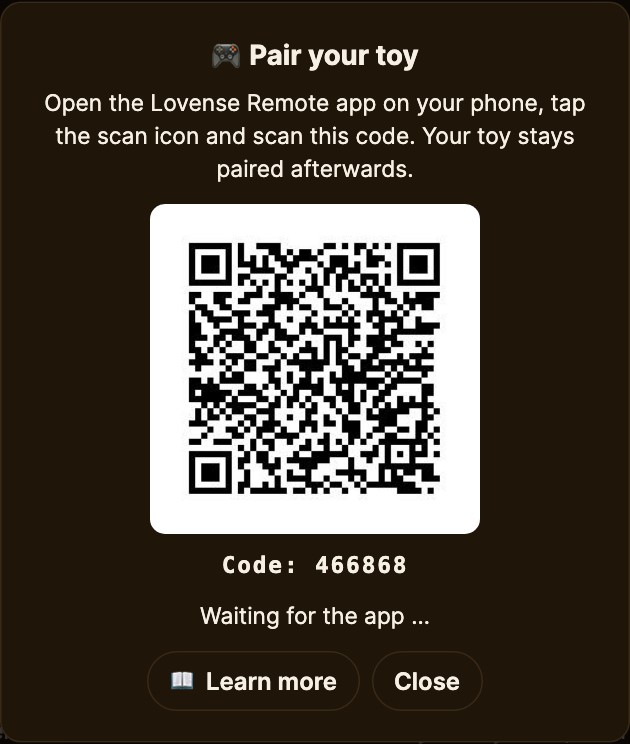
- Lovense: open Lovense Remote on your phone, switch your toy on and scan the QR code. Once paired, the page shows a green check mark. Press Test — your toy should buzz briefly.
- The Handy: type the connection key from the Handy app and press Save.
- Intiface: start Intiface Central, press Start server and connect your toy there. Then choose Intiface on the Toy page.
You only do this once — the page remembers your choice. A QR code cannot be scanned inside a headset, so do this step on your phone or computer.
Step 2 — play the clip
In the VR hub: start the full clip and press 🎛 Toy in the panel below the video. In your library: open the clip — a toy bar appears under the player; choose your toy there. Trailers and previews do not move the toy, only the full clip does.
Step 3 — download the script (buyers)
If you bought the clip, My Library and the VR library show a Toy script (.funscript) button next to Download – for 2D clips as well as VR clips. Save the file next to the downloaded video: both have the same name, only the extension differs. In the headset, DeoVR and HereSphere pick the script up on their own; on a PC, ScriptPlayer, FunPlayer or the Handy app play video and script together. The script is for your personal use only.
Toy sync right in My Library: as soon as clips with a toy script are in your library, a hint appears above them. Pair your Lovense there with one tap (scan the code with the Lovense Remote app), then choose Lovense in the bar under the player – the toy follows the video. Tell us once whether your Lovense is a vibrator (Lush, Hush, Edge …) or a stroking toy (Solace, Gravity …): vibrators follow the vibration track when the creator made one, otherwise they vibrate with the stroke speed – the Funscript standard. Stream-only clips work the same way; only the file download is missing there.


Downloaded scripts and vibrators: if the creator built a vibration track, your library offers a second file name.vib.funscript next to the stroke script. Put it in the same folder as the video: MultiFunPlayer and XTPlayer read it as the vibration axis, other players simply ignore it and vibrate with the stroke speed – the Funscript standard, so a Lush works with any player.
2D clips in the VR hub: the hub plays your 2D clips too. In My Library switch the small chip from VR to 2D, open the clip in the dome and the 🎛 Toy field appears just like for VR clips – your toy follows the video.
Who can use it
Everyone who owns the clip — by buying it or through an active subscription to the creator — can play it with a toy. Downloading the script file is for buyers only.
If the toy does not move
- Check that the Toy page shows your toy as connected, and press Test.
- Lovense: keep Lovense Remote open and the phone unlocked; the toy must be switched on and connected in the app.
- Intiface: the server must be running on the same device as the browser. On Android, allow the browser to access devices on your local network when it asks.
- Make sure you are playing the full clip, not the trailer, and that the clip shows the 🎮 Toy badge.